Split tunneling means your VPN carries only part of your traffic
Split tunneling is a VPN setting where the apps or sites you pick go through the encrypted tunnel and everything else leaves your device the normal way, through your internet provider.
A standard VPN connection is a full tunnel. Every packet from every app goes to the VPN server first, which is why one tap changes the public IP for the whole device. Split tunneling puts a rule set in front of that: match the rule, use the tunnel; miss it, go direct.
Teal VPN, made by Fxolio LLC, has a Free plan (500 MB a day, 2 devices) and a Pro plan, with apps for Android, Windows, Mac, Linux, Android TV and Chromebook. The Teal apps run a full tunnel, and we explain why further down.
The VPN app decides the path by rule: app, website or inverse
VPN apps offer three kinds of split tunneling rule: by app, by website address, or inverse, where everything goes direct except the apps you list.
App-based is the common one on Android and Windows. You tick the apps that should skip the tunnel, or tick the only apps that should use it. Site-based rules work at the browser level and are rarer. Inverse split tunneling flips the default so the tunnel becomes the exception, which suits someone who needs it for exactly one job, such as reaching a company server.
| Type | What you choose | Good for | Catch |
|---|---|---|---|
| App-based, exclude | Apps that go direct | A banking app or printer tool that refuses VPN traffic | The excluded app also uses your provider's DNS |
| App-based, include (inverse) | The only apps that use the tunnel | One work tool or one game | Every other app runs with no VPN at all |
| Site or URL-based | Web addresses that go direct | A site that misbehaves through the VPN | Usually browser-only; other apps ignore the rule |
Run a full tunnel unless one named app needs to go around it
A full tunnel should be your default; a split tunnel is a fix for a specific problem, not a better everyday setting.
Full tunnel means one IP, one DNS path, and a kill switch that covers everything. Split tunnel means faster speeds for the excluded apps and local devices that stay reachable, but your real IP shows up wherever an excluded app connects, and the kill switch usually does nothing for those apps.
Our view, after reading a lot of support tickets: most home users who ask for split tunneling want it for a printer on the home network or a banking app that rejects VPN logins. Both are usually solved by disconnecting for two minutes.
Stay on a full tunnel
- Public Wi-Fi in cafés, hotels and airports
- Travel, especially through countries with strict networks
- Keeping your browsing from your internet provider
- Any day you would not notice the speed difference
A split tunnel makes sense
- A home printer, NAS or Chromecast vanishes when the VPN is on
- A game where ping matters more than privacy
- A work tool that must see your real IP
- A bulky download you do not care about
Split tunneling earns its place in four situations
Split tunneling is useful for local devices, latency-sensitive apps, a company resource that only accepts VPN traffic, and remote-access setups where IT wants only office traffic on the office link.
In the business version, often called remote access VPN split tunneling, the company tunnel carries traffic for internal servers only, while video calls and cloud apps go direct so the office connection does not choke. Scalefusion's write-up describes it as the standard way to protect business-critical traffic without slowing everyday browsing.
A Reddit thread titled 'Does anyone actually use split tunneling regularly?' sits on the first page for this search. The honest answer from where we sit: a minority of people, and nearly always for one app each.
- One app logs you out every time the VPN connects
- Your printer or TV stops appearing when the VPN is on
- Your ping in one game roughly doubles with the VPN
- Your IT department told you which apps belong in the tunnel
Anything outside the tunnel is ordinary internet traffic
Traffic outside the tunnel gets no VPN protection: your provider sees where it goes, the site sees your real IP, and no VPN setting changes that.
Three things catch people out. DNS first: an excluded app usually asks your provider's DNS, so the names it looks up are visible even when the app itself uses HTTPS. The kill switch second: it cuts tunnel traffic when the VPN drops, while excluded apps keep running on the open path, as designed. Strict networks third: on a network that restricts VPNs, excluded traffic flows plainly while tunnel traffic may crawl or stop, which can make a split look fine when the VPN side has actually failed.
Browsers are the worst candidates for exclusion. One excluded browser carries most of what you would want kept private in the first place.
How to turn split tunneling on and prove it is routing correctly
Turning split tunneling on takes a few taps in apps that offer it, and proving it works takes one more check with Teal VPN's IP and DNS leak test at tealvpn.com/ip-leak-test, which works with any VPN and needs no sign-in.
Setting names differ. Norton VPN calls it Split Tunneling and shows steps for Android and Windows; ExpressVPN and NordVPN keep it in their app settings. The shape of the job is the same everywhere.
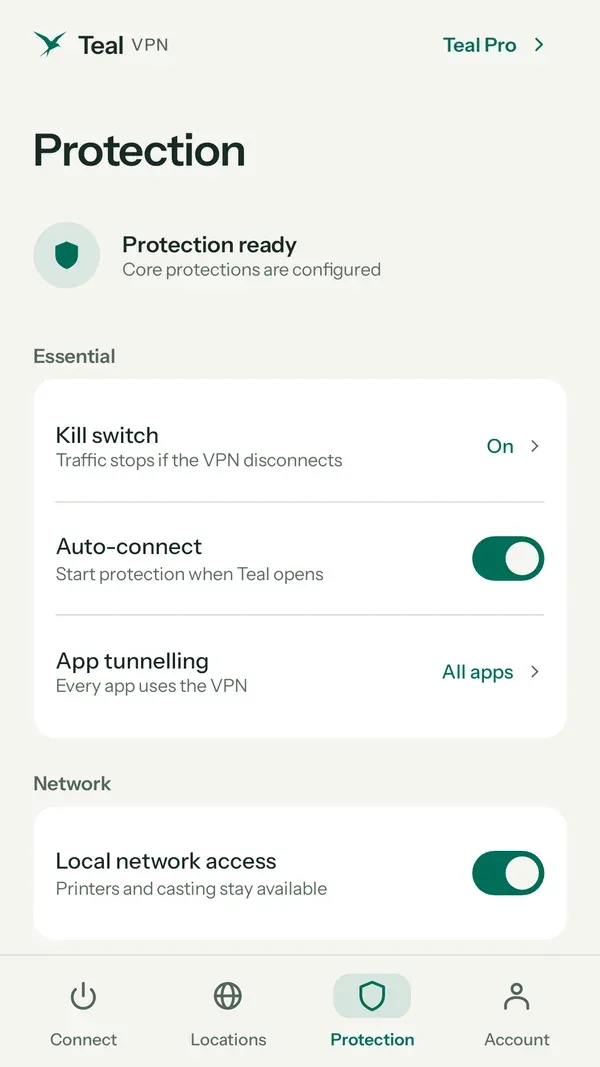
Find the switch
Open the VPN app, then Settings and look for Split tunneling or App exclusions. If the page is not there on your device, the app does not offer it on that platform.
Pick the mode
Choose whether listed apps skip the tunnel (exclude) or whether only listed apps use it (include or inverse).
Add as few apps as possible
A printer tool, a banking app, one game. Leave the browser you use every day inside the tunnel.
Check the tunnel side
Connect, then open tealvpn.com/ip-leak-test in an app that is routed through the VPN. The IP shown should belong to the VPN server and the DNS servers should not be your provider's. Any other what-is-my-IP page makes a fine second opinion.
Check the direct side
Open the same test from an excluded browser or app. It should show your home or mobile IP. If both sides show the same address, the rule is not applying: remove and re-add the app, reconnect, and test again.
Turn it off when the job is done
Switch the setting off and reconnect. The full tunnel resumes and every app goes back through the VPN.
Which VPNs offer split tunneling, and what Teal VPN does instead
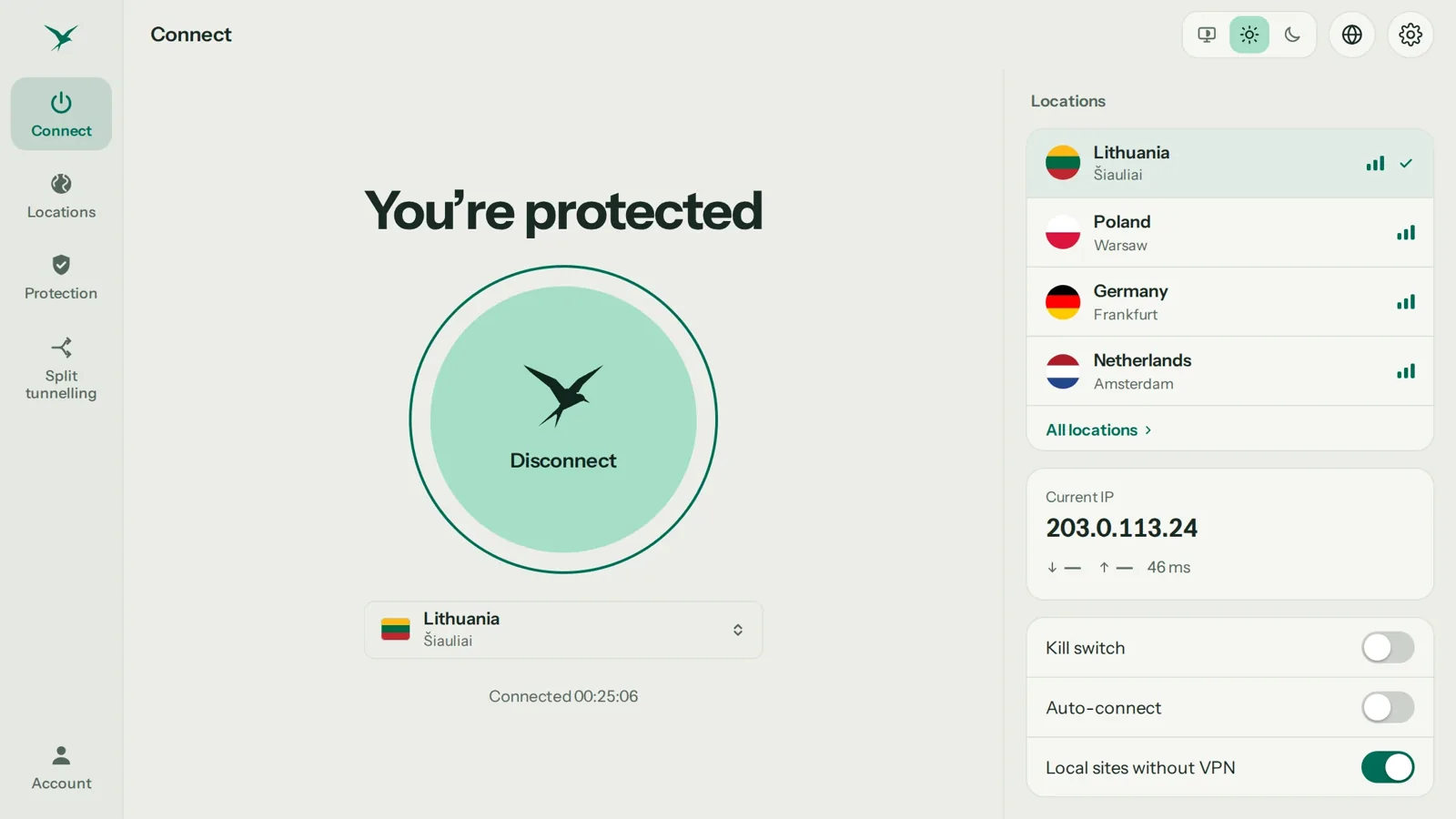
Norton VPN, ExpressVPN and NordVPN offer split tunneling in their apps, mostly on Android and Windows; Teal VPN does not list it and runs a full tunnel with Teal Secure on every connection.
Here is why we built it that way. Teal Secure obfuscates every connection, on the Free plan and on Pro, so the tunnel keeps working on networks that restrict VPNs, and the app tries other routes by itself when a network closes one. A split tunnel would send part of your traffic around all of that, and on exactly the networks where other VPNs stop, that is the part you would regret. No VPN is guaranteed to connect on every network, Teal included.
Teal Free gives 500 MB a day on 2 devices with nothing more than an email. Teal Pro is $7.99 a month, $24 for six months or $36 a year ($3 a month), with up to 10 devices on the yearly plan and 5 on the others, 14 server countries, a 30-day money-back period, and payment by card, Apple Pay, Google Pay, PayPal or crypto, all as of 6 November 2026.
- $36
- Teal Pro per year$3 a month; $7.99 monthly
- 30 days
- money-back on Teal Pro
- 14
- server countriessame list on both plans
- 500 MB
- a day on Teal Free2 devices, email only
| VPN | Split tunneling | Platforms shown | Where we checked, when |
|---|---|---|---|
| Norton VPN | Yes, app-based | Setup steps for Android and Windows on its own page | us.norton.com, November 2026 |
| ExpressVPN | Yes, in-app | Not broken down by platform in the write-up | MakeUseOf, December 2021 |
| NordVPN | Yes | Not broken down by platform; 'not working' searches are common, so check the support page for your OS | MakeUseOf, December 2021 |
| Teal VPN | Not listed; full tunnel with Teal Secure | Android, Windows, Mac, Linux, Android TV, Chromebook | tealvpn.com, 6 November 2026 |
Keep reading
References
- Norton: Split tunneling, what is it, how does it work, and is it secure?
- MakeUseOf: What Is Split Tunneling and Should You Use It?
- Scalefusion: What is VPN Split Tunneling? Explained in Simple Terms
Need help with Teal? Contact support.
Questions
What is split tunneling in a VPN, in one sentence?
Split tunneling is a VPN setting that sends the apps or sites you choose through the encrypted tunnel and lets everything else reach the internet directly through your provider.
Is VPN split tunneling safe?
The tunnel side is as safe as the VPN itself; the excluded side has no VPN protection at all, including its DNS lookups. It is safe when the excluded list is one or two apps you would not mind running without a VPN.
How do I know split tunneling is working?
Open tealvpn.com/ip-leak-test from an app inside the tunnel and again from an excluded app. The first should show the VPN server's IP, the second your own; if both match, the rule is not applying.
How do I turn off split tunneling?
Open the VPN app's settings, switch Split tunneling off and reconnect. Every app then goes back through the full tunnel.
Does split tunneling make my VPN faster?
Only for the apps you exclude, because they no longer travel through the VPN server. Apps inside the tunnel run at the same speed as before.
Does Teal VPN have split tunneling?
No. As of 6 November 2026 the Teal VPN apps run a full tunnel with Teal Secure obfuscation on every connection, and the app switches routes by itself when a network closes one. If you need one app outside the tunnel, disconnect for that task.
Does split tunneling work on iPhone and Mac?
Availability depends more on the operating system than the brand. Norton VPN, for example, documents it for Android and Windows only. Open your app's settings on the exact device; if the page is missing, that platform does not have it.